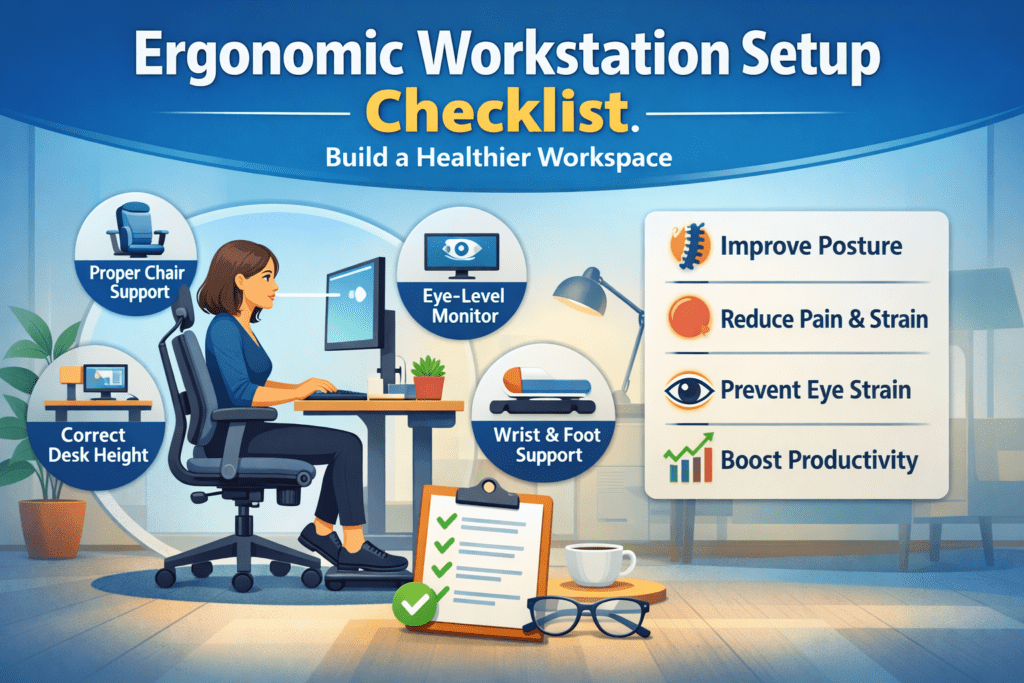
Why Ergonomic Workstation Setup Matters
Sitting for long hours at a desk can do more harm than most of us realise. A poorly arranged workspace often leads to neck strain, wrist pain, or chronic fatigue that silently reduces focus and energy. Using an ergonomic workstation setup checklist helps you identify small adjustments that protect your body and boost productivity throughout the day.
Ergonomics is not about expensive furniture-it’s about fitting your workspace to your body, not the other way around. When posture, lighting, and desk height work together, you create a safer and healthier environment that supports both comfort and long-term well-being.
At CORE EHS, our safety specialists often see that even minimal improvements-like raising a monitor or repositioning a chair-can dramatically reduce discomfort. Whether you work from home or in a corporate office, this guide will walk you through proven, expert-approved steps to transform your workspace into a healthier, more efficient ergonomic workstation setup.
Ergonomic Chair Setup – The Foundation of Comfort and Safety
Your chair is the cornerstone of any ergonomic workstation setup checklist. A good ergonomic chair keeps your spine in its natural “S” shape, supports movement, and reduces lower back pressure.
Chair Height
- Sit so your feet rest flat on the floor.
- Knees at a 90-degree angle, slightly below hip level.
- If your feet dangle, use a footrest for stability.
Lumbar and Back Support
- Adjust lumbar support to match the curve of your lower back.
- Sit fully back to avoid slouching.
- Choose a breathable, contoured backrest to reduce heat buildup.
Seat Depth and Tilt
- Leave 2–3 fingers of space between your knees and seat edge.
- Slightly tilt the seat forward to open hips and maintain circulation.
Armrests and Movement
- Keep elbows at 90 degrees without raising shoulders.
- Ensure forearms are parallel to the desk surface.
- Use a five-point rolling base for mobility and stability.
CORE EHS Tip: If your chair lacks adjustability, add a lumbar pillow or cushion. This small ergonomic fix offers immediate comfort and posture support.
Desk and Keyboard Setup – Keep It at Elbow Level
Your desk and keyboard placement are critical parts of the ergonomic workstation setup checklist. A poorly positioned desk can cause wrist strain, shoulder stiffness, and fatigue.
Desk Height and Layout
- Adjust desk so elbows bend at 90 degrees when typing.
- Keep forearms parallel to the floor and wrists straight.
- Position the desk just below elbow height to avoid shoulder tension.
- Keep frequently used items (mouse, notebook, phone) within reach.
- Ensure free legroom under the desk for natural posture.
Keyboard and Mouse Alignment
- Place keyboard directly in front of you, centered to your body.
- Maintain a 2–3 cm gap from the desk edge for wrist placement.
- Keep wrists neutral-avoid bending upward.
- Keep mouse close, moving from the elbow, not the wrist.
CORE EHS Tip: A keyboard tray or sit-stand desk is a low-cost ergonomic upgrade that encourages movement and reduces strain.
Monitor Placement – Eye-Level is Key
Proper monitor height ergonomics prevent neck and eye strain. Screen placement is a vital part of every office ergonomics checklist.
Monitor Height & Distance
- Top edge of the monitor at or slightly below eye level.
- Keep screen one arm’s length (20–28 inches) away.
- Eyes should fall on the top third of the screen naturally.
- Tilt screen 10–20° backward for visibility.
Dual or Multi-Monitor Setup
- Keep both monitors at equal height and distance.
- Place the primary screen directly in front, angle secondary at 15–30°.
- Use a monitor arm for easy adjustments.
CORE EHS Tip: If your monitor isn’t adjustable, raise it using a riser or books to meet ergonomic standards.
Lighting and Environment – Reduce Eye Strain and Enhance Comfort
Balanced ergonomic lighting improves comfort and focus while reducing fatigue. Even simple changes to brightness and positioning make a big difference.
Lighting Position
- Keep desk perpendicular to the windows to avoid glare.
- Use task lighting with warm bulbs (3000–4000 K).
- Avoid harsh overhead light facing the monitor.
Glare & Brightness Control
- Match monitor brightness to room light (~300–500 lux).
- Apply anti-glare filters if reflections persist.
- Keep screen clean and tilted slightly upward.
CORE EHS Tip: Smart adjustable lighting systems reduce strain and support natural circadian rhythms.
Foot Support and Leg Space – Maintain Circulation and Comfort
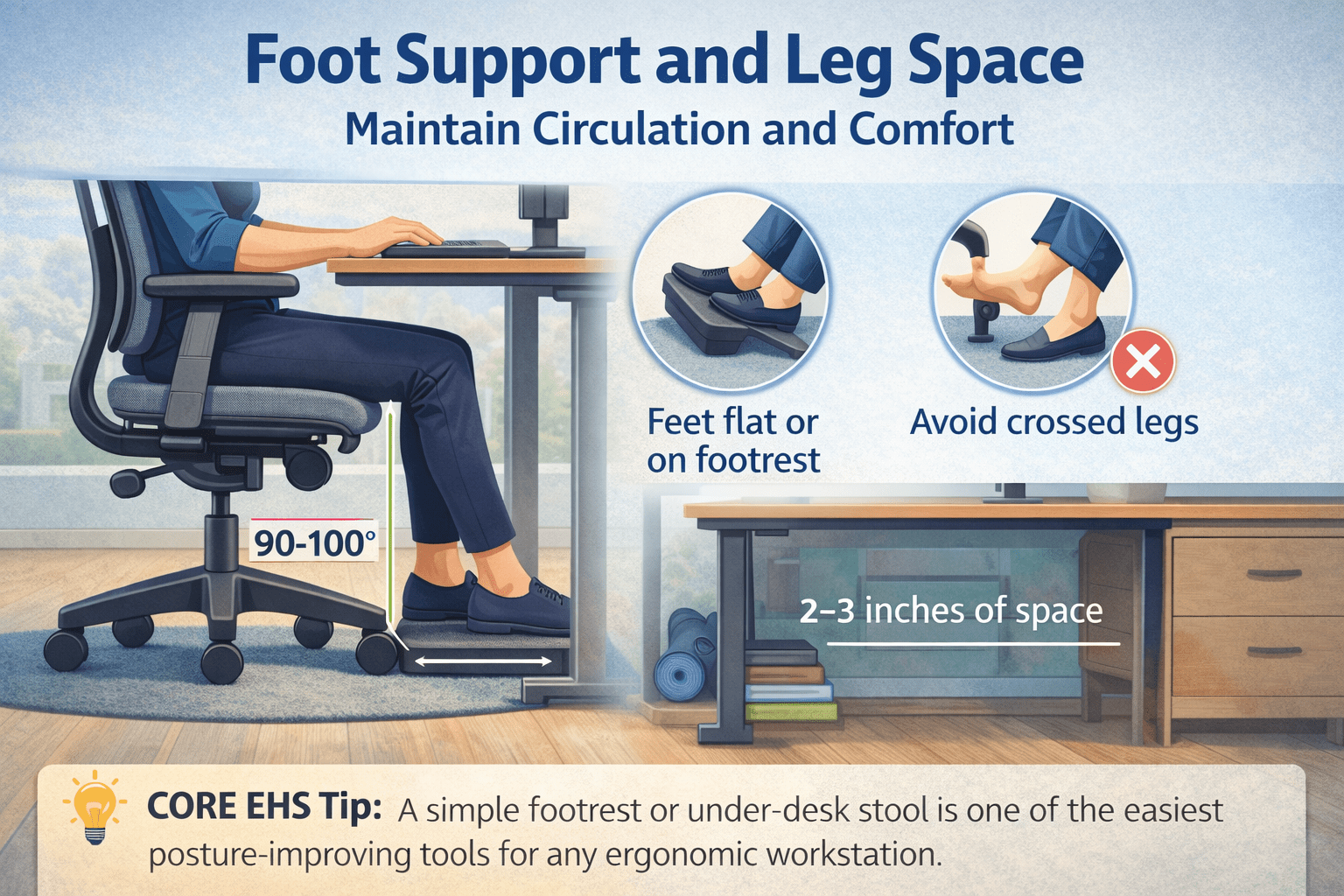
Proper legroom and foot support prevent fatigue and stiffness. This section of the ergonomic workstation setup checklist helps maintain lower body balance.
Foot & Leg Position
- Keep feet flat on the floor or use an ergonomic footrest.
- Avoid crossing legs; it limits circulation.
- Maintain a 90–100° knee angle.
- Leave 2–3 inches between knees and chair edge.
Legroom & Movement
- Keep the space under your desk clear.
- Stretch or roll ankles every hour.
- Stand for 1–2 minutes every 45 minutes.
CORE EHS Tip: A simple footrest or under-desk stool is one of the easiest posture-improving tools for any ergonomic workstation.
Daily Ergonomic Habits – Build a Safer Work Routine
Consistent ergonomic work habits are the real secret to comfort and productivity. Movement prevents stiffness and supports posture correction at work.
Posture and Movement
- Sit upright with shoulders relaxed.
- Re-adjust posture every hour.
- Take microbreaks every 30–45 minutes to stretch.
- Stand or walk briefly after long sitting periods.
Desk Exercises
- Stretch wrists, fingers, and shoulders regularly.
- Roll your neck gently to relieve tension.
- Flex toes or ankles under the desk for blood flow.
CORE EHS Tip: The best ergonomic workstation setup checklist includes daily movement. Posture improves only through repetition, not equipment alone.
Psychological Ergonomics – Comfort, Focus & Mental Wellness
A healthy ergonomic workstation setup also supports mental clarity. Psychological ergonomics helps reduce stress and boost workplace wellness.
Mental & Environmental Comfort
- Keep the workspace organised and clutter-free.
- Use calming colours and minimal décor.
- Control noise with headphones or panels.
- Adjust lighting warmth for comfort.
- Mute distractions during deep work.
CORE EHS Tip: A calm, tidy desk helps sustain focus and improves productivity.
Small Adjustments, Big Safety Impact
Every small action from this ergonomic workstation setup checklist makes a difference. Proper chair height, desk alignment, and posture combine to create safer, more efficient work habits.
At CORE EHS, we believe safety extends beyond compliance—it’s about building a culture of comfort, wellness, and performance. Our ergonomic and EHS training programs help organisations identify risks, train employees, and build lasting safety awareness.
FAQs
1. What is an ergonomic workstation setup?
An ergonomic workstation setup means arranging your chair, desk, monitor, and accessories so your body stays in a natural, neutral position. It helps reduce strain on the neck, back, and wrists while improving comfort and productivity during long working hours.
2. How should I sit correctly at my desk for good posture?
Sit all the way back in your chair with your back supported. Keep feet flat on the floor, knees at a 90-degree angle, shoulders relaxed, and monitor at eye level. This healthy sitting posture keeps your spine aligned and prevents fatigue.
3. What is the correct height for a computer monitor?
Your monitor should be about an arm’s length away, with the top of the screen at or slightly below eye level. This monitor height ergonomics rule keeps your neck straight and reduces eye strain during daily computer use.
4. Why is a footrest important for workstation ergonomics?
A footrest supports your feet when the chair is too high, helping maintain proper leg circulation and posture. It prevents pressure on the thighs and keeps the spine balanced—especially useful for shorter users or shared desks.
5. How often should I take breaks from the computer?
Follow the 20-20-20 rule: every 20 minutes, look at something 20 feet away for 20 seconds. Also, stand or stretch for 1–2 minutes every 45 minutes to prevent stiffness and keep muscles active.
6. What lighting is best for ergonomic workspaces?
Use natural light when possible, combined with warm task lighting (around 3000–4000 K). Avoid glare from windows or ceiling lights. Balanced lighting reduces eye fatigue and improves focus throughout the workday.
7. How can I make my office more ergonomic without new furniture?
Simple adjustments work: raise your monitor on a stand, use a cushion for lumbar support, keep the keyboard at elbow height, and use a small ergonomic footrest. Even without major investments, these changes improve comfort and reduce pain.